TapPDF
- 4.5
- Rating
- 100.00K
- Installs
- Free
- Price
 Analysis by App-foxy
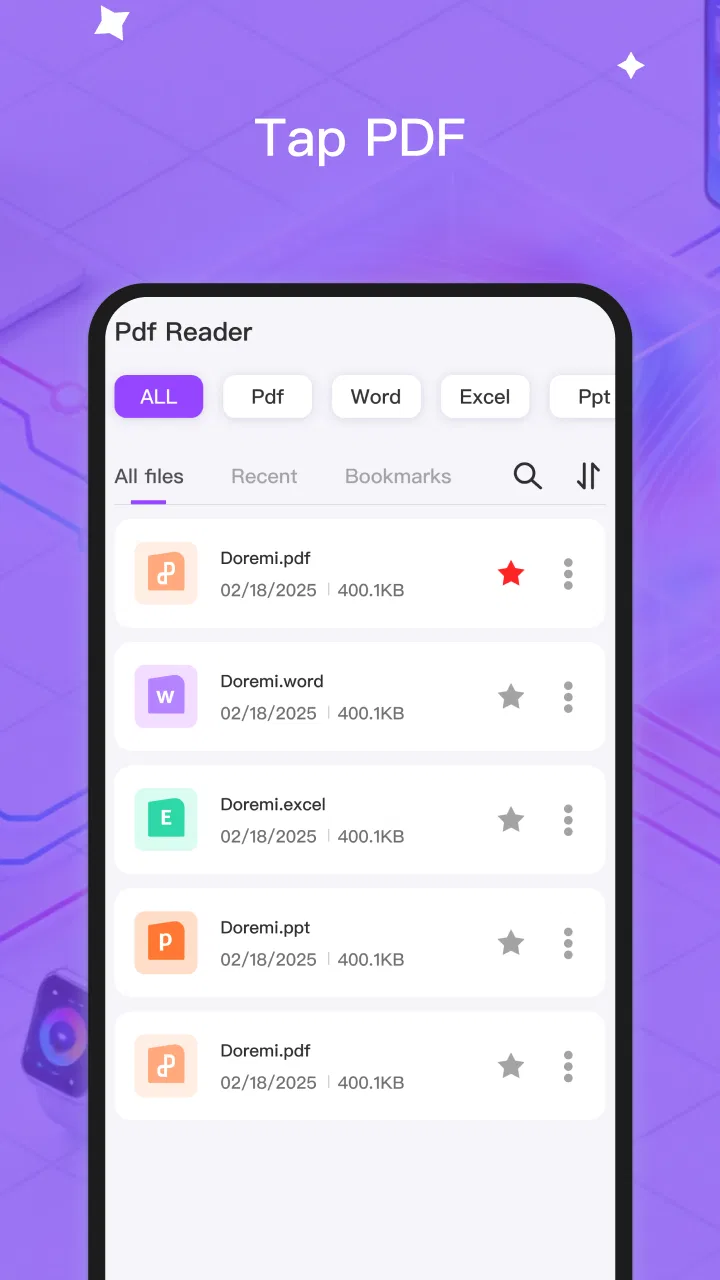
I spent time with TapPDF as a practical document tool rather than treating it like a simple file viewer. Its main appeal is easy to understand: it brings PDF reading and editing into one free app, so I can open a document, inspect it, and make changes without immediately switching between separate utilities. That sounds modest, but it matters when a PDF arrives at an inconvenient moment and I need to deal with it from a phone.
TapPDF is developed by Mr Khidma and sits in the tools category. It is aimed at everyday Android users who want a straightforward way to handle PDFs, not at people looking for a full desktop publishing suite. The app is available free of charge, carries an Everyone age rating, and has reached over one hundred thousand installs. Those figures suggest that it is already useful to a meaningful audience, while its average score of 4.5 gives it a positive reception among roughly twelve hundred ratings.
The current release is version 1.0.4, and the app runs on Android 7.0 or later. I see that combination as important context: this is an accessible utility for many existing Android phones, but it is also still a relatively young product. My experience was therefore less about expecting every advanced document feature and more about judging whether the basic reading-and-editing workflow feels dependable.
You May Also Like

 Blood Strike: 2.5 Anniversary
Blood Strike’s Loadouts Turn Every Drop Into a Tactical Gamble
A close look at Blood Strike’s custom loadouts: how fast access to signature weapons reshapes its battle royale rhythm, rewards preparation, and narrows the gap between fights.

 Pandora - Music & Podcasts
Pandora’s Music Is Easy to Start, but Harder to Recover
Pandora’s strength is its low-effort path from a seed to a station. Its weak spot is how much confidence it asks you to place in connection, setup, and quiet recovery.

 8 Ball Pool
 Is Built on Rivalries, Rematches, and Routine
A close look at the rivalries, rematches, shared routines, and unanswered safety questions that turn a quick pool match into a persistent mobile community.

 Samsung Music
’s Quiet Strength Is Playing What You Already Own
Its reach comes less from spectacle than from dependable access to a personal library. That simplicity is both the app’s strongest retention engine and its ceiling.

 AccuWeather: Weather Radar
AccuWeather Review: A Quick, Clear Forecast for Everyday Decisions
For everyday plans, the best forecast is the one you can understand quickly. AccuWeather makes rain timing, radar, and local conditions easy to act on, with a few trade-offs.

 Hill Climb Racing
Why Hill Climb Racing Still Turns Crashes Into One More Run
A tiny car, a bumpy hill and one more upgrade: Hill Climb Racing keeps resurfacing because its simple chaos makes every near-miss feel personal.
More From Our News Desk



How TapPDF fits into real PDF work
I find TapPDF most useful when a PDF arrives during the day and I need to do something with it before I can get to a computer. This section looks at how its reader-and-editor approach can shorten that handoff, while keeping the key decision in view: whether the work is small enough to do comfortably on a phone. I’ll also consider the habits that make that workflow safer.
A useful starting point for phone-based documents
The first thing I like about TapPDF is the way its purpose is concentrated. It is not trying to be a broad office package with spreadsheets, presentations, cloud storage, and email tools mixed together. The focus stays on PDF files. For someone who receives forms, instructions, receipts, schedules, or reference documents on an Android phone, that narrower purpose can make the app easier to approach than a large office application.
In everyday use, I would reach for it when a PDF needs more than a quick glance. A reader-only app is enough for checking a page, but it becomes inconvenient when I need to prepare a document for someone else or make a small correction before sending it onward. Having reading and editing in the same place reduces the number of handoffs in that process. I can review the page first, then decide whether it actually needs an edit instead of opening an editor before I understand the document.
That separation between reviewing and changing a file is one of the better habits this kind of app can encourage. I found it useful to read through a document once, identify the exact page that needs attention, and only then move into editing. On a phone, where screen space is limited, this is more efficient than repeatedly opening and closing different apps while trying to remember what needs changing.
Who will get the most from it
TapPDF makes the most sense for students, casual home users, field workers, and anyone who handles occasional paperwork away from a computer. A student might use it to inspect a handout and adjust a document before submitting it. A traveler could keep instructions or confirmations available for reading and make a small annotation when plans change. Someone managing household paperwork may appreciate having a single tool for checking and preparing PDFs instead of maintaining several specialized apps.
I would also recommend it to people who are frustrated by PDF viewers that stop at opening and scrolling. The value here is not that every document task becomes effortless; it is that the app begins with a more useful question: can I finish this small PDF job without leaving the app? For light work, that is a sensible advantage.
On the other hand, I would not choose it as my only document solution for a business that depends on complex forms, detailed page composition, or a carefully controlled review process. A dedicated desktop editor remains better when precision, repeatability, and collaboration matter more than convenience. TapPDF is strongest as a mobile utility, not as a replacement for a professional document production environment.
An everyday scenario where the workflow helps
Imagine receiving a PDF form while away from your desk. I would first open it in TapPDF to check whether all pages are present and whether the wording matches what I expected. After that review, I could move to the editing side for the small adjustment the situation requires, then inspect the result again before sharing it. The important detail is the order: read, edit, reread. That sequence helps catch accidental changes, especially when a phone display makes it easy to overlook a shifted line or an incomplete page.
For a short document, this feels more practical than sending the file to a computer, downloading another editor, or using an online service. It also keeps the task tied to the device where the document was received. That is the sort of convenience I think will matter more to ordinary users than a long list of advanced tools they may never touch.
What the current version says about the product
The current version gives me a useful frame for judging the app: it is a focused tool with a clear central job, rather than a mature desktop-style document suite. Here I’ll look at what that means for trying it in everyday use, including how to assess whether its core workflow fits your own PDFs before relying on it for more demanding work.
A young app with a clear direction
TapPDF was released on April 14, 2026, and the current version is 1.0.4. I read that release position as a sign of an app still establishing its foundation rather than one with years of accumulated complexity. The advantage is that the purpose remains easy to understand. The trade-off is that users should judge it primarily on the quality of its central PDF workflow rather than expecting the depth of a mature professional editor.
The version number also gives existing users a useful reference point. If the app is already installed, checking that it is running the current release is a sensible first step before judging its behavior. With a young tool, updates can be especially meaningful because small changes may affect opening, editing, or saving behavior even when the overall interface looks familiar.
I would keep personal expectations realistic here. A version such as 1.0.4 can be capable and useful without having every refinement found in established alternatives. The right question is not whether it replaces every PDF application, but whether its present reading-and-editing path handles the documents I actually work with.
What that means for someone already using it
Existing users are likely to benefit most from treating TapPDF as a focused utility rather than constantly testing it against a full desktop suite. Keep the original file before making changes, especially when the document is important. Then open the edited copy and inspect the pages from beginning to end. This simple habit is more valuable than it sounds because a mobile editing session can make a change feel complete before the whole file has been checked.
I also recommend using descriptive filenames when preparing several versions of the same document. A reader may remember which file was opened, but once edits are involved, it becomes easy to confuse the source with the working copy. TapPDF is most convenient when it is part of an organized workflow: preserve the original, edit a copy, review the result, and only then send it.
That advice is not a criticism of the app alone. It reflects the nature of mobile PDF work. Small screens encourage quick actions, while important documents often require careful verification. TapPDF makes the quick part more accessible, but the responsibility to check the final file still belongs to the user.
Where it compares well with usual alternatives
Compared with a basic PDF reader, TapPDF has a more useful ambition because it combines viewing with editing. That can save time when the document needs attention rather than just reading. Compared with a large office suite, it should feel less distracting for a PDF-only task. I would rather use a focused tool for a quick document job than navigate through a collection of unrelated office features.
Online PDF services have a different advantage: they may offer broader conversion or processing options. However, they also introduce a browser-based workflow that can feel slow on a phone, particularly when I only need to inspect or make a small change. TapPDF is more appealing when speed and simplicity matter and the task belongs entirely on the device.
Dedicated professional PDF editors remain the better choice for demanding work. They usually make more sense when I need exact layout control, repeatable document production, or a larger workspace. TapPDF wins the comparison when the priority is a free, approachable mobile tool for ordinary PDF handling. It loses when the document is too complex for a phone-centered workflow.
Three practical habits that improve the experience
- Review before editing: I first scan the entire document so I know whether the problem is isolated or affects several pages. This prevents unnecessary changes and makes the final check more focused.
- Keep a clean source: I avoid treating the first opened file as disposable. Saving or preserving an untouched copy gives me a safe fallback if an edit does not look right later.
- Check the result at normal reading size: Zooming in helps with detail, but I also inspect the page as a reader would see it. This catches changes that look fine close up but feel awkward in the complete layout.
These habits reveal an important trade-off. TapPDF can shorten the path from receiving a PDF to preparing it, but convenience can make users rush. The app is most reliable in my hands when I use its speed for navigation and access, then slow down for the final inspection.
Remaining gaps and situations where I would skip it
The biggest limitation is the natural limit of mobile PDF editing itself. A phone is excellent for quick corrections and document checks, but it is not a comfortable substitute for a large screen when a file needs extensive restructuring. Even if the app handles the essential job well, long editing sessions can become tiring because every decision is made within a compact interface.
I would also skip TapPDF when the document is part of a high-stakes workflow that demands a specialized tool and a formal verification process. Legal, financial, or business-critical files deserve extra care, and I would not rely on a mobile editor without checking the finished document independently. The free price is attractive, but it should not change the level of caution applied to important paperwork.
Another reason to choose a different option is if my main need is simply reading a large library of PDFs. A dedicated reader may provide a more comfortable reading-first experience, while TapPDF is more compelling when editing is part of the same task. Likewise, someone who routinely works with advanced document operations may outgrow a focused app sooner than a casual user.
For new users, the best test is personal and practical: open the kinds of PDFs you actually receive, try the small edit you commonly need, and then inspect the saved result carefully. If that path feels natural, the app is probably a good fit. If the task immediately turns into a struggle with layout or repeated manual steps, a more specialized editor will save time.
What I would watch as the app develops
Because TapPDF is still early in its product life, I would watch how future releases refine the core experience rather than judging it by promises about features that are not present. The most meaningful progress would be improvements that make opening, navigating, editing, and checking a document feel more predictable from one session to the next.
I would also pay attention to how well the app serves two different groups: newcomers who want an uncomplicated tool and returning users who need a dependable routine. Those goals can conflict. Adding more controls may help experienced users while making the interface harder for occasional users. The best evolution would preserve the app’s focused character while making common document tasks more precise.
For now, my recommendation is straightforward. TapPDF is worth trying if I want a free Android tool that brings PDF reading and editing together, especially for occasional paperwork and on-the-go corrections. Its 4.5 average and broad install base make it an encouraging choice, but I would still match it to the job rather than assume it can replace every alternative.
My final view is that TapPDF succeeds when I treat it as a practical mobile companion: open the file, understand it, make a limited change, and verify the result. It is not the app I would choose for elaborate document production, yet it offers a sensible answer to a common phone problem. If your PDF tasks are usually short, personal, and mobile, TapPDF is a useful tool to keep available.
FAQs for TapPDF
01What is TapPDF, and what can I use it for?
TapPDF is a mobile PDF utility designed to help users open, read, organize, and manage PDF documents from an Android or iOS device. It can be useful for viewing ebooks, manuals, forms, receipts, study materials, and work documents without needing a computer. Before downloading, check the app’s current feature list because available tools may vary by platform and version.
02Can TapPDF edit, annotate, or convert PDF files?
TapPDF’s usefulness depends on the editing tools included in the version you install. Some PDF apps focus mainly on reading and file management, while others also provide features such as highlighting, drawing, adding notes, filling forms, signing documents, or converting files. Review the official store description carefully to confirm which functions are available and whether advanced tools require a paid upgrade.
03Is TapPDF free to download and use?
TapPDF may be available to download at no initial cost, but free access does not always mean that every feature is included. PDF applications commonly offer optional subscriptions, in-app purchases, advertisements, or limits on editing and file conversion. Before starting a trial or purchasing a plan, read the pricing information, renewal terms, and cancellation instructions shown in the relevant app store.
04Are my PDF documents private and secure in TapPDF?
Privacy is especially important when using a PDF app for contracts, identification documents, invoices, or personal records. Before importing sensitive files into TapPDF, review its privacy policy and requested permissions. Check whether documents are processed locally on the device or uploaded to online servers, how long data may be retained, and whether files are shared with service providers or used for analytics.
05What devices and file sources are compatible with TapPDF?
TapPDF compatibility can depend on your operating system, device model, and the document source. In general, users should confirm that their phone or tablet meets the minimum Android or iOS requirements before installing. It is also worth checking whether the app can open PDFs from local storage, email attachments, cloud services, or file-sharing apps, and whether offline reading is supported.
Pros
- Converts scanned documents into searchable
- editable PDFs
- Supports batch scanning for processing multiple pages efficiently
- Offers useful page tools such as cropping
- rotating
- and reordering
- Cloud sharing makes it easy to send finished documents
- Automatic edge detection can speed up the scanning process
Cons
- Advanced tools may require a paid subscription
- OCR accuracy can drop with handwriting or poor lighting
- Large scans may use considerable device storage
- Some exports may include limitations depending on the plan
- Performance can vary on older phones or tablets

TapPDF
Gallery